

Table of Contents

Running a small business website is already a lot to manage. You’re thinking about products, customers, social media while security tends to sit on the back burner until something goes wrong.
And when something does go wrong, it’s usually not a small thing. Google can put a hacked site on a blacklist in just a few hours. If a database is broken and there is no backup, you have to start over. These are not edge cases. Every day, small business sites get hacked, usually because the owners thought their sites were too small to be a target.
Here’s the uncomfortable truth: small sites are often the easiest to attack because they don’t have enough security. Not all attackers want your data. Sometimes they want access to a server, a redirect, or a way to spread malware. Your site is a vehicle, and if the door’s unlocked, they’ll walk right in.
The good news is that two of the most effective protections (SSL certificates and daily backups) are either free or included with quality hosting. Cloudways, for example, bundles both into its SMB hosting plans, so small business owners aren’t left configuring security tools from scratch.
But before we get into solutions, let’s talk about what you’re actually protecting against.

Why Small Business Sites Stay Vulnerable
Most small business owners aren’t ignoring security out of laziness. They’re operating under a few assumptions that turn out to be wrong.
The first: “I don’t have anything worth stealing.” Maybe not directly, but your server resources are valuable to a botnet. Your domain reputation matters to spammers. Your customer email list has value to anyone who wants it.
The second: “My hosting provider handles that.” Sometimes true, often not — at least not completely. Shared hosting environments tend to offer minimal built-in security without explicit configuration or paid add-ons.
The third: “I’ll set it up later.” This one is the most dangerous. Security isn’t something you bolt on after a breach. You need it before the first visitor ever lands on your page.
What SSL Actually Does (And Why Google Makes a Big Deal About It)
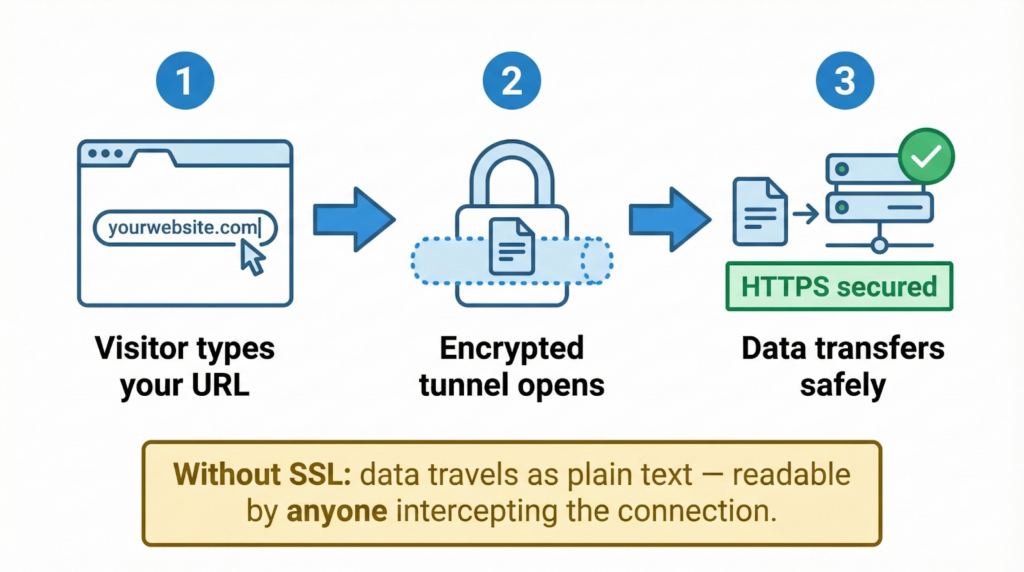
SSL (or TLS, if we want to get technical) makes a safe, private tunnel between your website and the person who is visiting it. When someone types in a password, fills out a contact form, or gives you their credit card information, that information is completely scrambled. It basically becomes gibberish that no one can read, so no one can spy on it as it moves across the web.
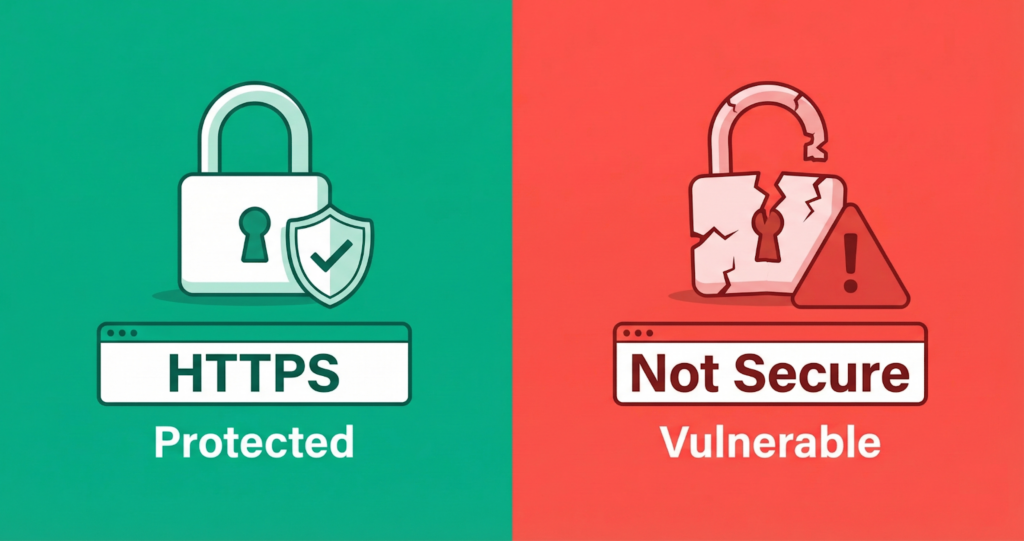
The proof is right there at the top of the screen for your visitors: they see a little padlock icon and “HTTPS” in the address bar.
If you don’t have that setup, browsers like Chrome will actively warn people away. They’ll slap a glaring “Not Secure” label on your site the second a user tries to do something as simple as joining your email list. It scares people off. A huge chunk of visitors will just close the tab immediately when they see that warning—and honestly, can you blame them?
Beyond just building trust, Google actually looks at HTTPS to figure out where you should rank, and they’ve been doing it since 2014. Having it isn’t going to magically shoot a bad page to the #1 spot overnight, but if you’re neck-and-neck with a competitor for a tough keyword, the secure site is almost always going to win the tiebreaker.

Getting SSL for Free
You don’t need to pay for an SSL certificate. Let’s Encrypt is a nonprofit certificate authority that issues free, trusted SSL certificates — the same encryption strength as paid alternatives. Most modern hosting providers integrate Let’s Encrypt directly into their control panels. If yours does, setup takes about two minutes.
If your host doesn’t make it that simple, Cloudflare’s free plan offers SSL termination at the CDN level. Add your site, update your nameservers, and Cloudflare handles the certificate. It’s a slightly indirect route but works regardless of what’s running underneath.
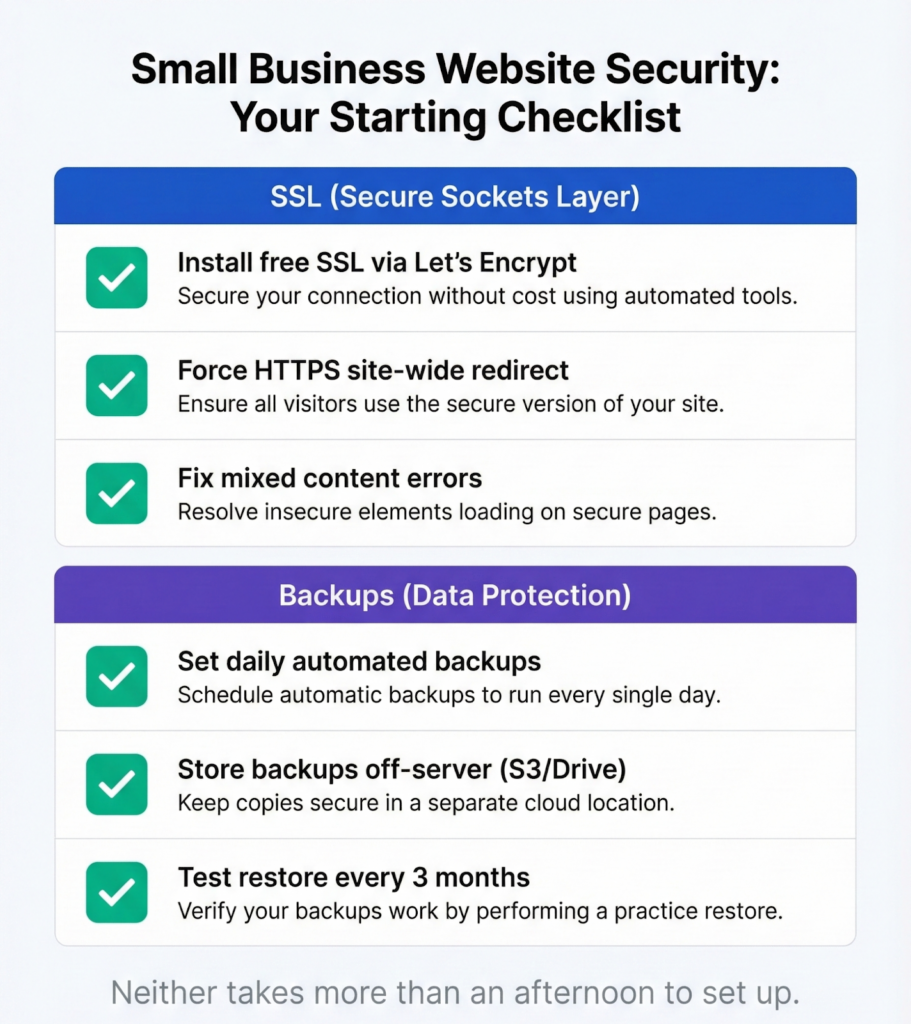
After installing SSL, force HTTPS across your entire site. Any request to http://yourdomain.com should redirect automatically to the secure version. In WordPress, a plugin like Really Simple SSL handles this with a single toggle. In cPanel environments, there’s usually a built-in switch. If you’re comfortable editing server config files, a few lines in .htaccess does the job directly.
One thing to watch for: mixed content errors. These occur when a page loads some assets (images, scripts, stylesheets) over HTTP even though the page itself is served over HTTPS. Browsers flag this, and it breaks the padlock. A plugin like Better Search Replace can scan your database and update old HTTP URLs to HTTPS in bulk.
Daily Backups: The Safety Net You Hope Never to Use
SSL protects data in transit. Backups protect your site when something has already gone sideways — and “something going wrong” covers a much wider range than most people expect.
A plugin update breaks your layout. A theme conflict corrupts your database. Someone on your team accidentally deletes a product category. A vulnerability in an outdated plugin gets exploited overnight. You make a round of changes, realize they were a mistake, and have no way to roll back.
None of these scenarios require a sophisticated attack. They’re just the ordinary chaos of running a website over time.
A backup policy that actually works has three components: frequency, storage location, and testing.

Frequency
Daily backups are the minimum for any active site. If you’re publishing content, processing orders, or updating inventory regularly, daily is non-negotiable. Some businesses running high transaction volumes even go hourly. The question to ask yourself: how much data can I afford to lose? Your backup schedule should match that answer.
Storage Location
Your backup should not live on the same server as your site. If the server goes down or gets compromised, your backup goes with it. Good options include Amazon S3, Google Cloud Storage, or a Dropbox-connected solution. The goal is geographic and infrastructure separation — your backup should be physically and logically isolated from your production environment.
Testing for Restoration
The majority of people omit this step. Untested backups are nearly worthless. Until you give it a try, you won’t know if it restores cleanly. Remind yourself to test your restore procedure every three months. Create a staging environment, pull your latest backup, and make sure the website returns exactly as it should. You don’t really have a backup if you’ve never been able to successfully restore it.
Backup Tools You Should Know
UpdraftPlus is the most popular free solution for WordPress websites. The restoration process is simple, and it allows for remote storage to Google Drive, Dropbox, or Amazon S3, as well as scheduled backups. If you already use Jetpack, Jetpack Backup is a good option as well. With its paid plans, it provides real-time backups, which is especially helpful for data redundancy.
If you’d rather not think about this at all, that’s precisely what managed hosting is designed for. Automated daily backups, offsite storage, and one-click restores handled at the infrastructure level — no plugins to configure, no manual processes to remember.
These Two Things Won’t Make Your Site Bulletproof
SSL and daily backups are a foundation. A necessary one. But they’re not a complete security strategy.
A site protected by HTTPS and backed up daily can still be vulnerable to brute force login attacks, outdated plugin exploits, or weak admin credentials. The next layer involves two-factor authentication on your admin account, regular plugin and theme updates, a web application firewall, and routine malware scanning.
Think of SSL and backups as locking your front door and keeping a spare key somewhere safe. You still need to check that the windows aren’t open.
Where to Start
If you’re not sure whether your site currently has SSL, open it in a browser and check the address bar. No padlock, or an “http://” prefix, means you’re unprotected. Most hosting dashboards display your SSL status directly.
For backups, check your hosting account for built-in options first. If none exist — or if the backup retention period is too short — install UpdraftPlus and configure it to store copies in a location separate from your server.
Neither of these should take more than an afternoon to set up properly. And once they’re in place, you’ll have closed two of the most common vulnerabilities that small business sites leave open.
Frequently Asked Questions
Is free SSL as secure as paid SSL?
Yes, for the vast majority of use cases. Free certificates from Let’s Encrypt use the same encryption standards as paid alternatives. Paid certificates offer extras like extended validation (EV), which displays your company name in the browser bar — but for encryption purposes, the protection is equivalent.
How often should a small business back up its website?
At minimum, daily. For sites that process transactions or update content frequently, more often is better. The right frequency depends on how much data you can afford to lose — if a day’s worth of orders is unacceptable to lose, your backup schedule should reflect that.
What’s the best free backup plugin for WordPress?
The most dependable free choice is UpdraftPlus. It features a simple restoration procedure, remote storage to several cloud providers, and scheduled backups. Jetpack Backup is a real-time backup solution that is worth the investment for WooCommerce stores that receive a lot of orders.